Feral Fiction User Guide
Table of Contents
Quickstart!
Part 1: On Being (How to Act)
Part 2: Let's Go Somewhere (Navigation)
Part 3: What's That, You Say? (Dialog)
Part 4: Other Actions (Getting Things, Examining Things, and Plot Notes)
Part 5: Game Control (Plot, Reading Level, Icons, and Coming Soon!)
Quickstart
Welcome to Feral Fiction! Here's your cheat sheet to dive in fast:
- 🌍 Move: Type things like go north, step inside, or enter the lift. You can also say go to the pub and Feral Fiction will path you there. Or say go forward or follow the story to automatically advance to the next scene. Tip: hover over the location image to see where you can go from your current position.
- 💬 Speak: Put dialog in quotes: "Hey Ziggy, what's up?" or tag it: Say to Ziggy, "Pour me a drink."
- 🎙️ Voice: Click a character image on the left side of the screen to open the audio (voice) interface. Just click the mic icon to start a conversation, and hold down the spacebar to talk. Release the spacebar to listen. The squelch control can help adjust for ambient background noise. Feral will transcribe and answer you—fast. When you're done, click on the character image in the audio interface to restore the story screen.
- F1 – Open help
- F2 – Change font size
- F3 – Rewind to previous scene
- F4 – Fast-forward (up to) latest scene
- F5 – Resume play from this point
- PageDown / PageUp – Scroll the story window
- Shift + PageDown – Jump to bottom of story
- Shift + PageUp – Jump to top of story
⌨️ Shortcuts:
🎨 Theme + Font: Type theme::eighties or theme::normal to switch between visual themes. Use the Aa button to cycle through font sizes. Your choices will be remembered across sessions.
⚠️ Note: You can only speak and act as your character. You can’t control others unless the story lets you.
Now scroll down to learn more… or just dive in!
1. Speaking, Acting, and Expressing Yourself
In Feral Fiction, you control a single character—your avatar in the world. You can move, speak, whisper, shout, act, and reflect. You can type these inputs or speak them aloud.
💬 To speak:
Put your dialog in quotes:
"Where are you going?"
"Can I come with you?"
If only one character is nearby, your message will be automatically addressed to them. If multiple characters are present, you may need to tag your first line:
Say to Ziggy, "Hey. Can we talk?"
Once a character is tagged, the system assumes you’re continuing the conversation with them—until you switch to someone else.
🎭 To act:
Use simple present-tense to describe what you do. Both first-person and imperative voice are accepted:
I sit by the fire and take a slow breath.
Sit by the fire and take a slow breath.
You can also emote or describe internal thoughts:
I sigh. I’m not ready for this.
He has no idea I’m bluffing.
🤫 To whisper, shout, or express tone:
You can add tags like these before your dialog:
whisper: "Don’t tell anyone I said that."
shout: "Run!"
grin: "You always know how to ruin a moment."
Or just embed them naturally:
I whisper, "Don’t tell anyone I said that."
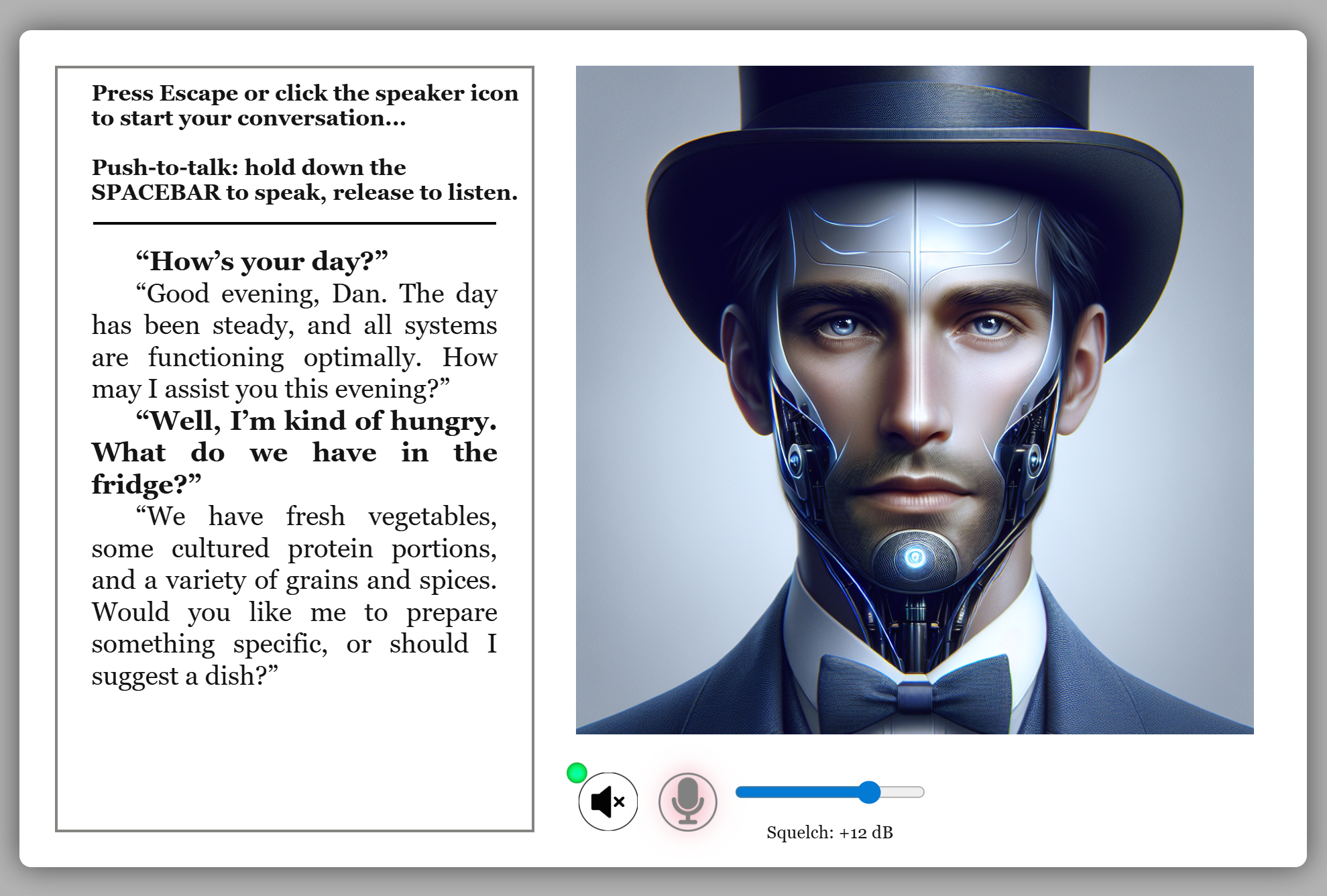
🎙️ To speak out loud (voice input):
Click any character portrait on the left to open the voice interface. Then:
- Click the mic icon (or press Escape once) to begin a conversation.
- Hold the Spacebar while speaking.
- Release Spacebar to stop and listen.
The voice interface will transcribe and respond to your message. Tone, pacing, and emphasis all influence how you’re understood. When you’re done, click the character portrait again to return to the story view.
🖼️ Example: Here's what the voice interface looks like when active:
2. Moving Through the World
Feral Fiction stories often take place in rich environments with locations, objects, paths, and points of interest. You can move around naturally using directional commands or location names.
🧭 To move between locations:
- Use simple directions:
go north,east,down - Use movement verbs:
enter the hallway,climb the ladder,step into the elevator - Use destination names:
go to the kitchen,head for the vault
In most stories, Feral will understand where you want to go and take care of the navigation for you — even across multiple rooms.
🧱 Obstacles, locked doors, and puzzles:
Some stories include interactive barriers or puzzles. If you're blocked, try commands like:
open the hatchlook for a switchget the access card
Feral will remember items you've gotten, and will help resolve navigation challenges if it understands your intent.
🎯 Goal-driven movement:
You can also express intent directly:
Go to the bar.
            Look behind that door.
This works best in character-driven stories where destinations are tied to plot or relationships.
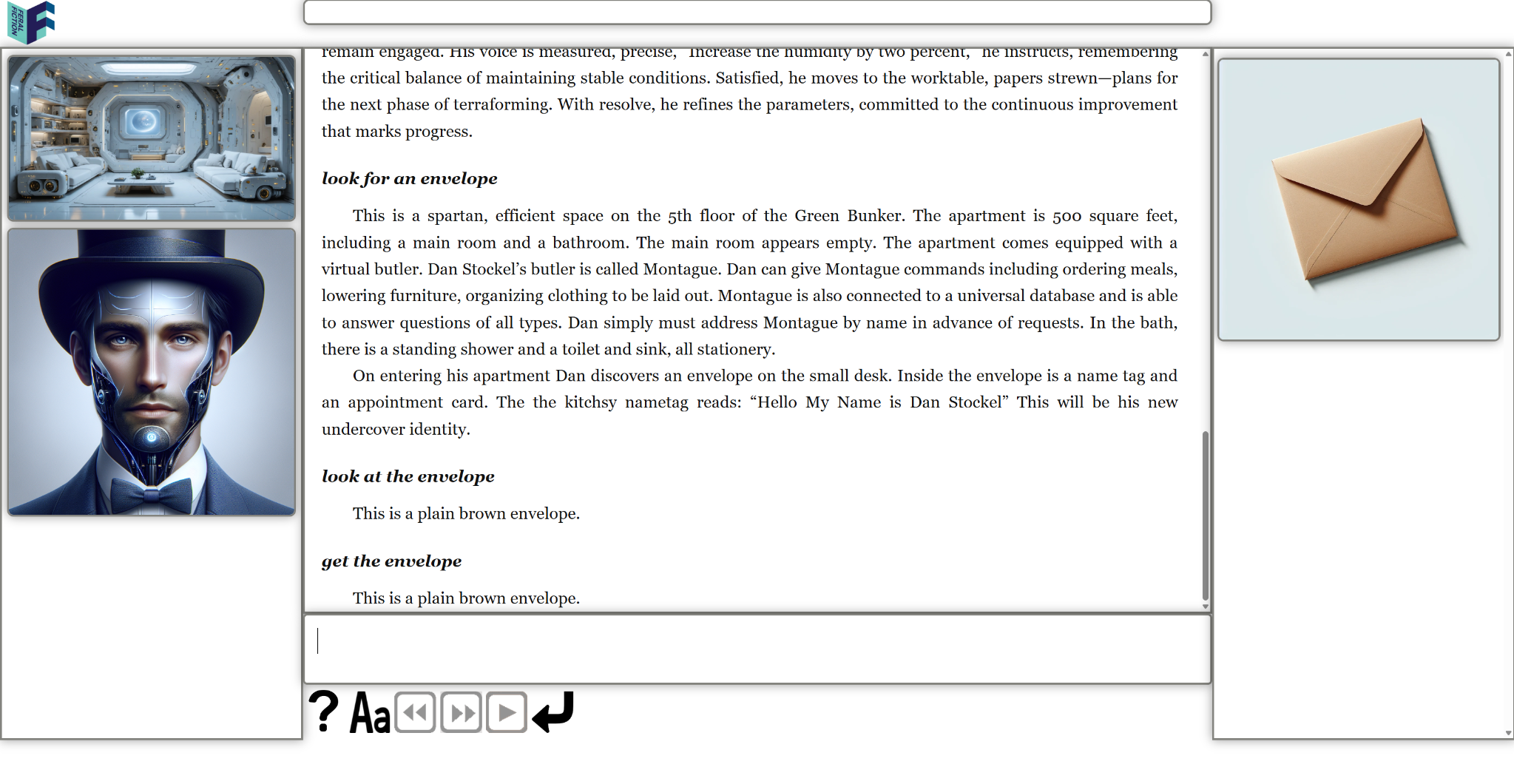
🖼️ Example: Here's what movement and action look like in Feral Fiction:
⏩ Following the story forward:
If you just want to advance to the next scene without worrying about where to go, you can say:
go forwardfollow the storyfollow the path(or follow the anything, really)
Feral Fiction will automatically route your character to the location of the next scene. If the story branches at that point — meaning your choices will shape what happens next — you'll be prompted to play through rather than skip ahead.
💡 Navigation hint:
Not sure where you can go from your current location? Hover over the location image — a tooltip will show you the available exits at a glance.
3. Talking to Characters
Feral Fiction lets you talk with the characters in the story. This can be through typed dialog, or voice (see next section). Here's how typed dialog works:
💬 To talk to characters via keyboard:
- Just type what your character says in quotes:
"Hi, what's your name?" - Or use tags like:
Say to Zoe, "Where are you from?"
If multiple characters are present, you may need to tag your first line. After that, Feral will remember who you're speaking to until you change it.
You can also change tone and emotion with your phrasing. All of these are valid:
            "Zoe, you're late."
            "Zoe, you are so late."
            "ZOE! YOU'RE LATE!"
Characters may respond differently based on how you express yourself.
🎭 Internal monologue and implied speech:
Some stories will support first-person thoughts or actions that imply dialog. For example:
            I ask her if she remembers me.
            She looks like someone I've met before.
            Maybe this is the moment to be honest.
Feral will treat these as indirect dialog or inner thoughts, depending on context.
📣 Dialog in voice mode:
Click a character image, then press Escape to activate the audio interface. Then hold the Spacebar to speak. Release to listen. Use tone, emphasis, and pauses to guide the interaction. When you're done, click the character image again to return to the story screen.
Example:
Feral will transcribe and respond. It remembers who you last spoke to, even across scenes—unless you change it.
You can also say things like:
            "Let's keep this between us."
            "I think we should talk."
            "Montague, what is your purpose?"
Once you're comfortable, dialog becomes a powerful way to shape the story and relationships within it.
4. Objects, Media, and Interactions
Feral Fiction stories often include interactive objects, images, or videos that appear as part of the world. You can click on them or refer to them in natural language.
🔍 To examine or describe an object:
Look at the envelope.Examine the statue closely.Read the poster.
When something is clickable (like an image or media clip), it will usually respond to touch or mouse events and trigger a larger view, playback, or an effect.
🎬 To interact with video:
- Click a play icon to view embedded video
- Use the rewind and fast-forward buttons (or F3/F4) to jump between key scenes
Some clips include voice or character dialog. If a video starts mid-conversation, Feral will keep track of context and resume where you left off.
🖼️ Images and overlays:
Clicking on an image may open a modal with a zoomed view. Some story moments contain overlays or full-screen presentations that frame a visual as part of the world.
You can also refer to visible objects or images in your input:
            "Did you draw this?"
            Pick up the pen on the table.
            Read the book.
Media in Feral Fiction is woven into the narrative—it’s not separate. That means objects you see can often be mentioned, touched, or remembered by the story and characters.
5. UI Controls and Typing
Feral Fiction's user interface is designed for focus and flow. At the center of the screen is your main story window. Below that is a single text entry box where you type your actions, thoughts, dialog, or commands.
⌨️ The Input Box:
Type your commands or dialog just like you would in a messaging app. You can:
- Press
Enterto submit - Use the
Up/Down arrowsto recall previous entries - Use
PageUp / PageDownor scroll to move through the story window
The input box supports markdown, smart quotes, and inline command keywords (like theme::eighties).
🎛️ Buttons along the bottom:
- Help (❓) – Opens the in-world helpfile
- Aa – Cycles through font sizes
- < – Rewind to an earlier story moment
- > – Fast-forward to the most recent turn
- ▶ – Continue playing if paused or in dialog
📱 Mobile controls:
On mobile, these buttons are larger and touch-friendly. You can also tap characters, swipe up/down to scroll, and hold the spacebar while touching the screen to speak aloud.
🧠 Visual feedback:
- Flashing cursor shows the current focus
- Scroll bar updates dynamically as new content arrives
Everything in Feral Fiction is designed to keep you immersed—minimal distractions, clear story flow, and a responsive, adaptive interface.
🖼️ Example: Here's a labeled overview of the main Feral Fiction interface: